Set Up Claude Code and Ship Your First Task
claude code
getting started
ai coding assistant
agentic coding
developer experience
claude.md
developer tools
terminal
productivity
10 min read
8 views
What Claude Code is, in one minute
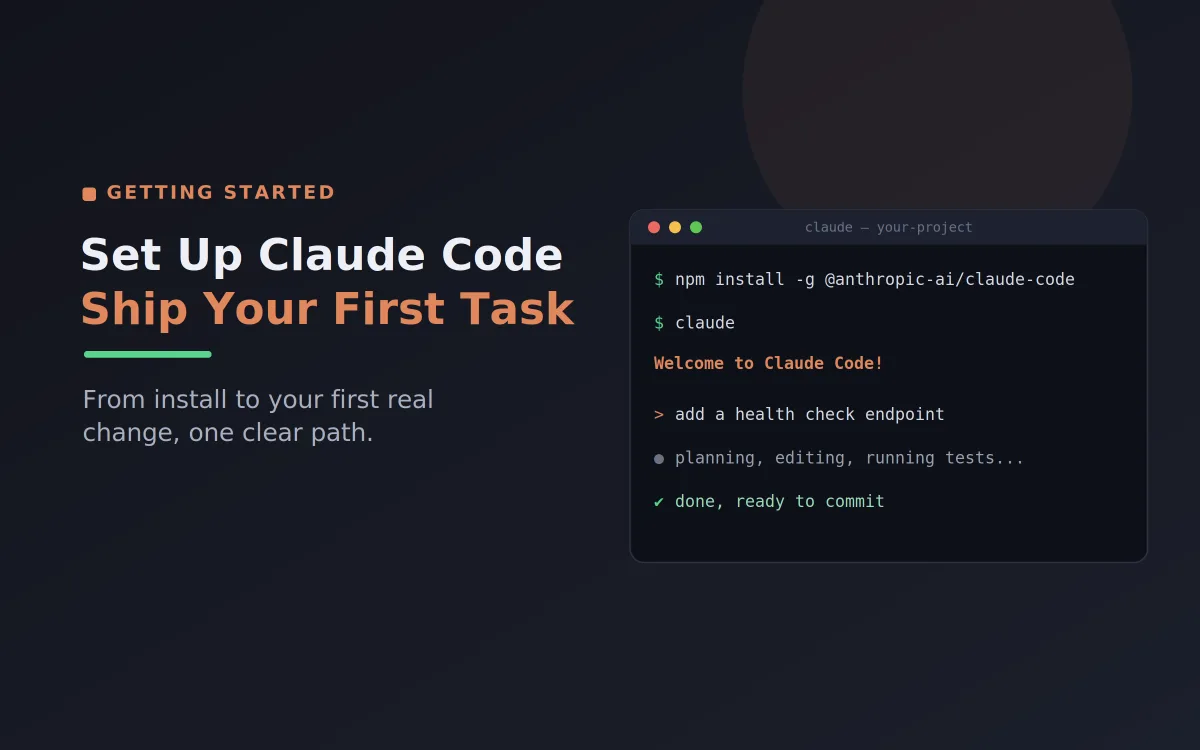
Claude Code is an AI coding assistant that lives in your terminal and works directly on your codebase. Instead of copying snippets back and forth from a chat window, you tell Claude what you want in plain English, and it reads your files, plans the work, makes the edits, runs your tests, and shows you the result for approval. It is the difference between an assistant that talks about your code and one that actually does the work alongside you. This guide is a practical, beginner friendly walkthrough: you will install Claude Code, understand the small set of files it reads to learn your project, and ship your first real change.
You do not need anything exotic to follow along. A code repository you already work in, a terminal, and a Claude subscription or Console account are enough. By the end, Claude will be a working part of your setup rather than a tool you have only read about.
From zero to your first shipped change
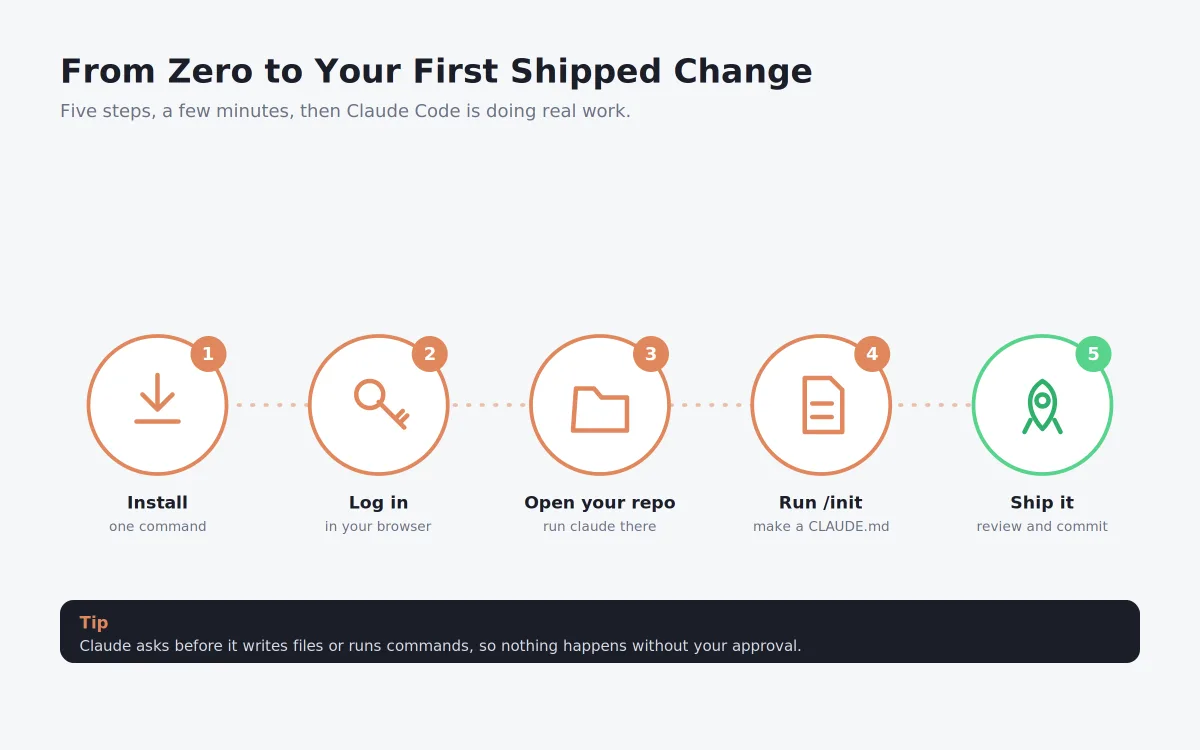
The whole journey is five short steps, and the first four take only a few minutes. The diagram above shows the path, and the sections below walk through each step.
Step 1: Install Claude Code
There are two supported ways to install Claude Code. The native installer is the simplest because it needs no other tools, while the npm method suits anyone who already lives in the Node.js ecosystem and wants to pin a version.
# Option A: native installer (macOS or Linux), no Node.js needed
curl -fsSL https://claude.ai/install.sh | bash
# Option B: npm (requires Node.js 18 or newer)
npm install -g @anthropic-ai/claude-code
On native Windows, the install script runs in PowerShell instead. Once it finishes, confirm the install worked.
claude --version
A version number means Claude is ready. One safety note for the npm route: never install it with sudo. If you hit a permissions error, use a Node version manager so everything stays in your home directory.
Step 2: Log in
Claude needs an account before it can do anything. Start a session and it will prompt you to authenticate in your browser on first use.
claude
Follow the browser prompt to sign in with your Claude subscription or Console account, and your credentials are stored so you will not log in every time. If you ever need to switch accounts, run /login from inside a session.
Step 3: Open Claude Code in your repository
This step matters more than it looks. Claude works best when you launch it from the root of a real project, because that is where it can see your files and your structure.
cd ~/code/your-project
claude
You now have an interactive session, with Claude aware of the project around it. Before you ask for any changes, it is worth giving it a proper briefing, which is what the next step does.
Step 4: Create a CLAUDE.md with /init
The fastest way to teach Claude Code about your project is the built in /init command. Type it inside the session and Claude scans your repository and writes a starter CLAUDE.md, the file it reads at the start of every session.
> /init
We will look at what goes into that file in the next section. For now, know that running /init once saves you from re-explaining your project in every conversation.
Step 5: Ship your first task
Now give Claude something real but small. A good first task is well defined and low risk, so you can watch how it works without much at stake.
> Add a /health endpoint that returns { status: "ok" } and a test for it.
Claude will propose a plan, then ask before it writes files or runs commands, so nothing happens without your approval. When it finishes, review the changes and commit them like any other work. That is your first shipped change with Claude Code, and the loop you just ran is the same one you will use for everything bigger.
The markdown files Claude Code reads
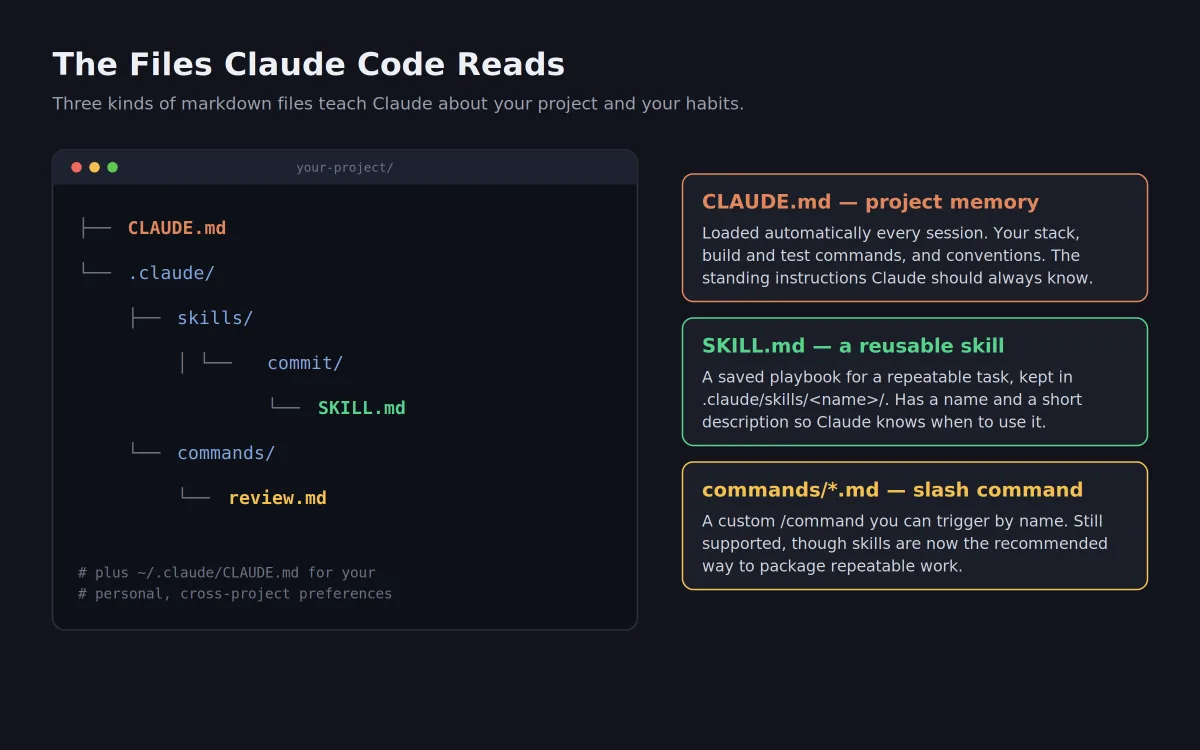
Most of the power in Claude comes from a few plain markdown files that teach it about your project and your habits. There are three kinds worth knowing, shown in the tree above, and each has a clear job.
CLAUDE.md, your project memory and instructions
CLAUDE.md is the single most useful file. Claude loads it automatically at the start of every session, so anything written there becomes a standing instruction. It lives in your project root, and Claude also reads a personal ~/.claude/CLAUDE.md for preferences that should apply across all of your projects. A good CLAUDE.md is short and practical. It states your stack, the exact commands to build and test, and the conventions you care about.
# Acme API
## Stack
- Node.js 20, Express, TypeScript
- PostgreSQL 16 with Prisma
## Commands
- `npm run dev` starts the server on port 3000
- `npm test` runs the test suite
## Conventions
- ES module imports only, never require()
- Every new endpoint needs input validation and a test
The most valuable lines are the ones that prevent repeated mistakes. If Claude keeps using the wrong import style, add a rule for it. Because the file is read every session, each line keeps paying off across hundreds of interactions. You can edit it by hand, or run the /memory command to open it inside Claude.
SKILL.md, a reusable skill
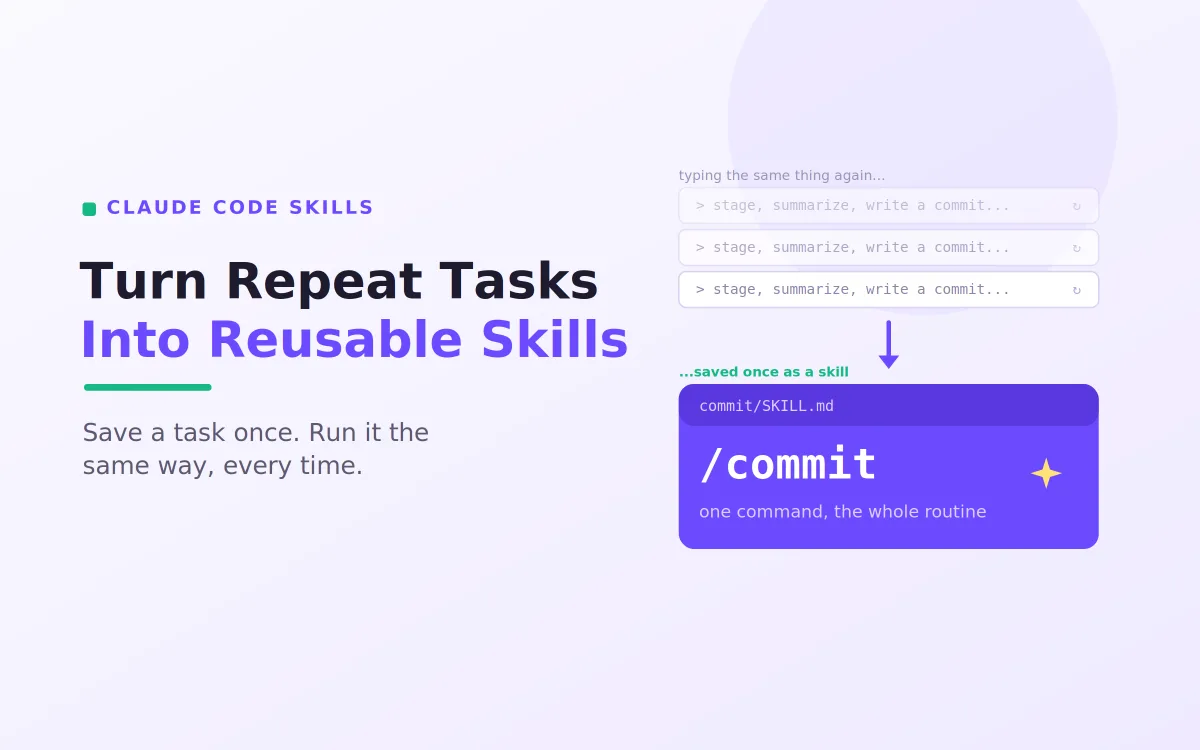
When you find yourself asking Claude to do the same multi step task again and again, you can capture it as a skill. A skill is a folder under .claude/skills/ with a SKILL.md inside, and it carries a name and a short description so Claude knows when it applies.
---
name: commit
description: Stage changes and write a clear conventional commit message
---
# Commit helper
1. Run `git status` and `git diff --staged`.
2. Summarise the staged changes.
3. Propose a commit message in conventional format.
4. Wait for my approval before committing.
Now the whole team can trigger that saved playbook by name, and everyone gets the same careful behaviour. Skills are the recommended way to package repeatable work in Claude Code.
commands/*.md, a custom slash command
The third kind is a custom command file in .claude/commands/. These create a /command you can run by name, and they still work today, although custom commands have been merged into skills, so skills are now the recommended approach for new work. If you have existing command files, they keep running without changes, which makes the move to skills optional rather than urgent.
A quick word on slash commands
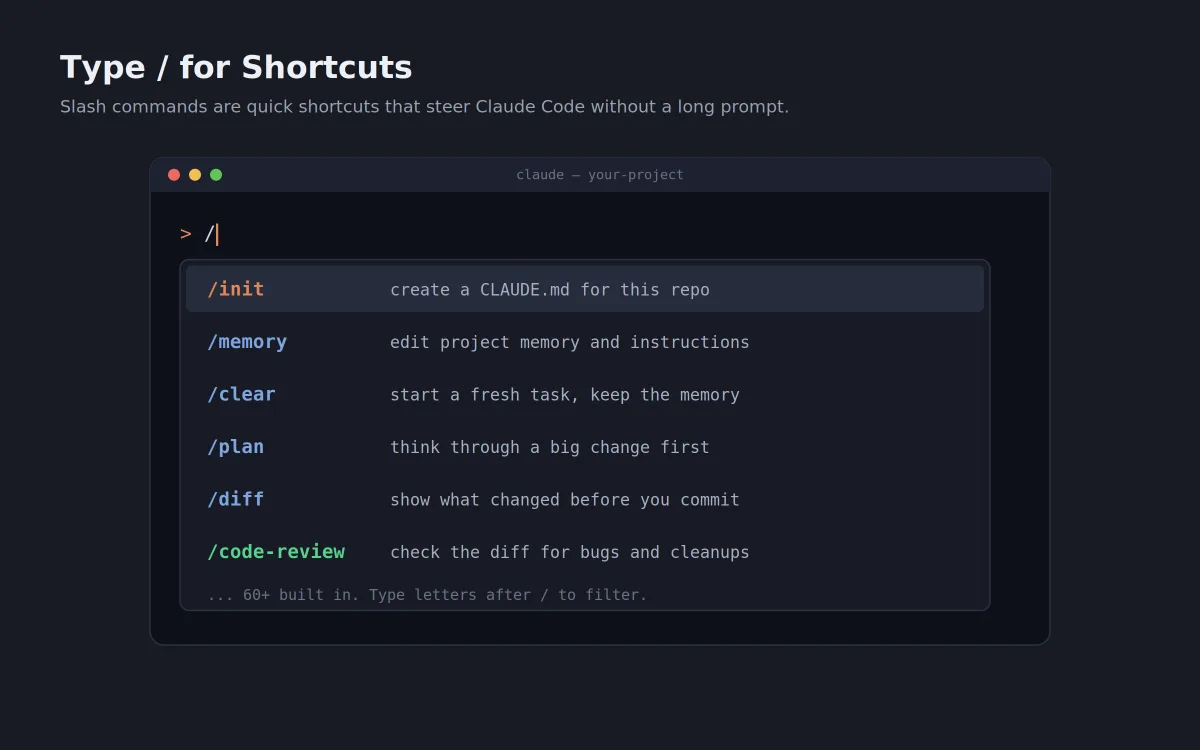
You have already met /init, /memory, and /login, and these belong to a much larger family. Slash commands are shortcuts that steer Claude without writing a long prompt. Type / in a session to see the full list, or type a few letters after it to filter. There are more than sixty built in, grouped loosely by where they help: setting up, doing the work, and shipping. A handful you will reach for constantly are /clear to start a fresh task while keeping your project memory, /plan to think through a large change before touching code, /diff to see exactly what changed, and /code-review to check that diff for bugs and cleanups.
Slash commands are worth an article of their own, and that is exactly what is coming next in this series. For now, the habit to build is simple: when you are unsure what to do, type / and look.
Writing prompts that actually deliver
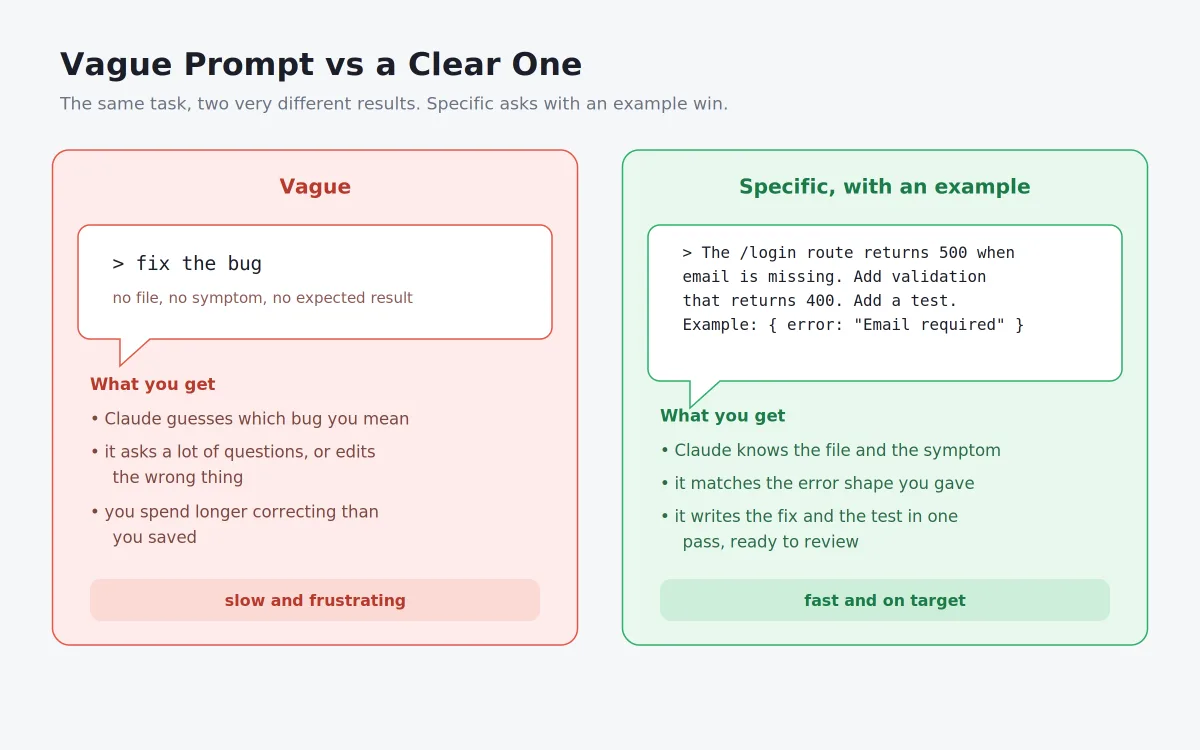
The single biggest lever on your results with Claude Code is the quality of your request. The comparison above shows why. A vague prompt like "fix the bug" forces Claude to guess which bug, in which file, with what expected outcome, and you spend longer correcting it than you saved. A specific prompt names the file, describes the symptom, states the result you want, and gives a small example of the shape of the output. With that, Claude Code can write the fix and the test in a single pass.
The pattern is easy to remember. Say what is wrong, say where, say what "done" looks like, and show an example whenever you can. Prompting is a craft with real depth, from giving examples to asking Claude to plan first, and it deserves a full article, which is also coming later in this series. The short version is that clear, specific prompts with an example are the fastest path to good output.
You are set up, now build
You now have Claude Code installed, you understand the markdown files it reads to learn your project, and you have shipped your first real change. That is the foundation. Everything more advanced, from richer skills to parallel work across a large codebase, builds on this same loop of asking clearly, reviewing the change, and committing. Keep your CLAUDE.md current, lean on slash commands as you learn them, and write specific prompts, and Claude quickly stops being a novelty and becomes one of the most productive tools in your daily workflow.
Articles Worth Reading
Interested in automating customer interactions? An AI voice agent that answers your calls so you never miss a customer shows how AI voice technology can handle enquiries, qualify leads, and improve customer responsiveness.
If you’re exploring AI-powered knowledge management, How I Built an AI Document Assistant for a Client breaks down the architecture and implementation of a system that can search, understand, and retrieve information from documents.
For a behind-the-scenes look at deploying AI in real business environments, How I Shipped Production-Ready AI Agents for a Client shares practical lessons from building and launching AI agents that deliver measurable value.
Data-driven decision-making isn’t limited to AI. How Simple Demand Forecasting Cuts Food Waste and Costs explains how forecasting models help businesses reduce waste, optimize inventory, and improve profitability.
Building payment-related applications? Prevent Duplicate Payments: A Developer's Guide covers essential techniques for ensuring transaction safety, preventing duplicate charges, and improving system reliability.
External Links
Frequently Asked Questions
Let's build
Have a project worth building?
If this maps to a problem in your business, tell me about it. I will tell you honestly whether software or AI can fix it, and how I would build it.